Real-world datasets rarely exist in a ready-to-use format within your Python environment—they come from various sources such as databases, spreadsheets, web applications, and flat files.
Among these sources, CSV (Comma-Separated Values) and Excel files are two of the most commonly used formats for storing and sharing tabular data. CSV files are lightweight, text-based, and universally compatible, making them ideal for handling large datasets.
Excel files, on the other hand, offer additional features like multiple sheets, formatting, and formulas, which are widely used in business environments.
Understanding how to read from and write to these file formats using Pandas is essential for any data analysis workflow.
Reading Data from CSV Files
CSV files are the backbone of data exchange in analytics. Pandas provides the read_csv() function, which is both powerful and flexible for loading CSV data into a DataFrame.
Basic Syntax

Commonly Used Parameters
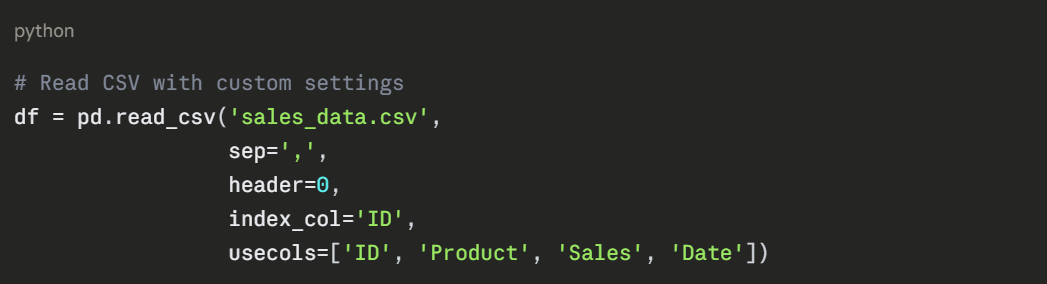
1. filepath_or_buffer: Path to the CSV file (local or URL).
2. sep or delimiter: Specify the delimiter (default is comma). Use sep=';' for semicolon-separated files.
3. header: Row number to use as column names (default is 0). Use header=None if no header exists.
4. index_col: Column to use as the row index.
5. usecols: Select specific columns to load, reducing memory usage.
6. dtype: Specify data types for columns to optimize performance.
7. na_values: Define custom missing value indicators.
Example
Writing Data to CSV Files
After cleaning, transforming, or analyzing your data, you'll often need to save the results. The to_csv() method allows you to export DataFrames back to CSV format.
Basic Syntax:

Key Parameters
1. path_or_buf: Output file path.
2. sep: Delimiter to use (default is comma).
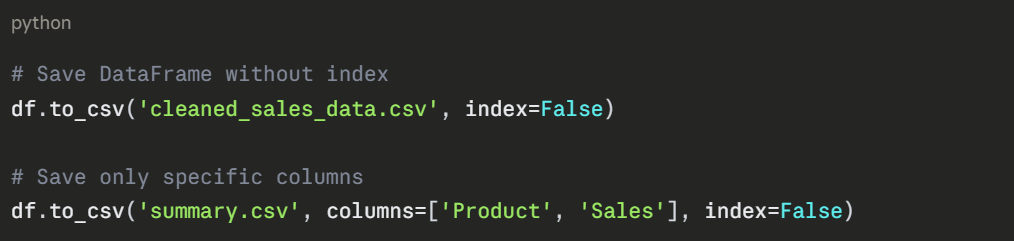
3. index: Whether to write row indices (default is True). Set index=False to exclude.
4. header: Whether to write column names (default is True).
5. columns: Specify which columns to write.
6. mode: Write mode—'w' for overwrite (default), 'a' for append.
Example
Reading Data from Excel Files
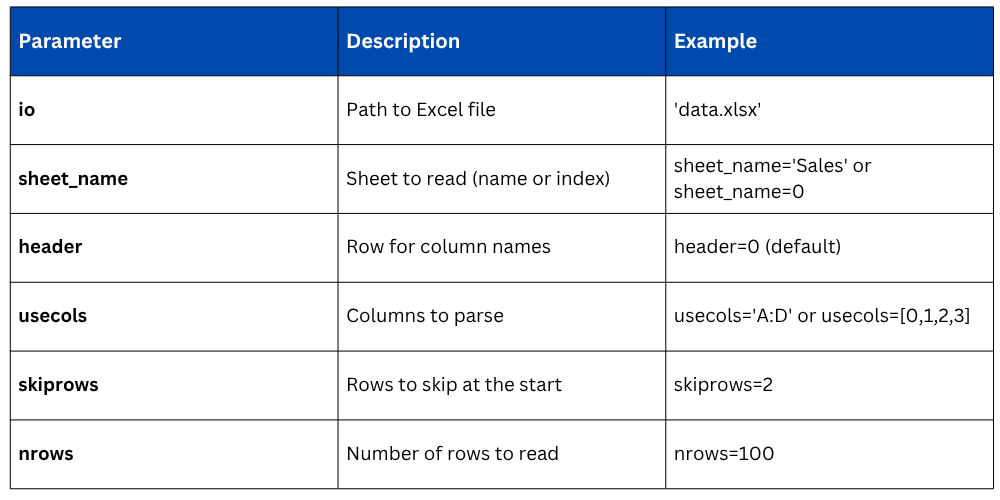
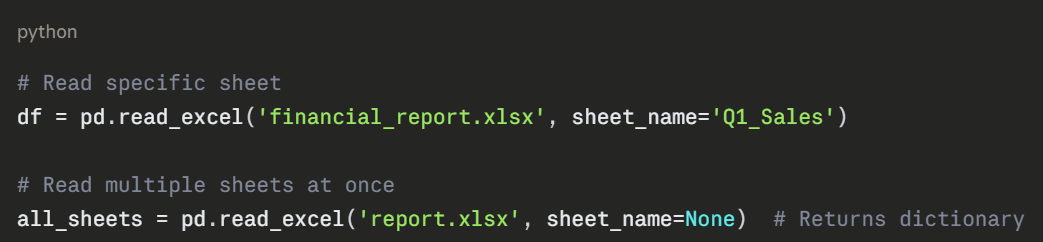
Excel files (.xlsx, .xls) are prevalent in corporate environments. Pandas uses read_excel() to load data from Excel workbooks, which may contain multiple sheets.
Basic Syntax

Important Parameters
Example
Writing Data to Excel Files
Exporting data to Excel format allows you to share formatted, multi-sheet workbooks with stakeholders who prefer spreadsheet tools.
Basic Syntax

Useful Parameters
1. excel_writer: File path or ExcelWriter object.
2. sheet_name: Name of the sheet (default is 'Sheet1').
3. index: Include row index (default True).
4. columns: Specify columns to write.
5. startrow, startcol: Position to start writing data.
Writing Multiple Sheets

Practical Considerations
When to Use CSV vs. Excel
1. Use CSV when working with large datasets, sharing data across different platforms, or when file size matters.
2. Use Excel when you need multiple sheets, formatted reports, or integration with business tools like Microsoft Office.
Performance Tips
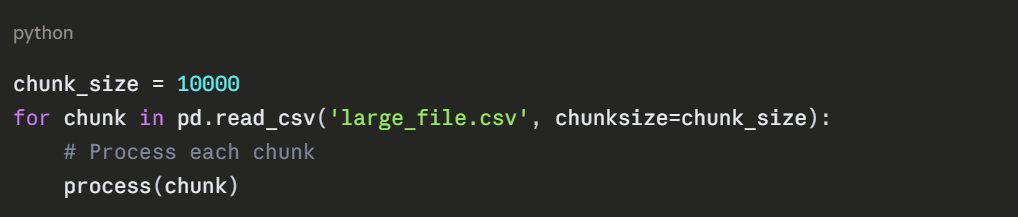
1. For large CSV files, consider using chunksize parameter to read data in chunks.
2. Specify dtype explicitly to reduce memory usage.
3. Use usecols to load only necessary columns.
Example of Chunked Reading

Class Sessions
Sales Campaign

We have a sales campaign on our promoted courses and products. You can purchase 1 products at a discounted price up to 15% discount.