USD ($)
$
United States Dollar
Euro Member Countries
India Rupee

Monitoring Performance with Performance Analyzer

Lesson 43/44 | Study Time: 15 Min

Monitoring performance with Power BI's Performance Analyzer is a vital practice to optimize reports for speed and efficiency.

Performance Analyzer is a built-in tool in Power BI Desktop that helps report developers identify bottlenecks by capturing detailed timing information about each visual’s query, DAX evaluation, and rendering process.

Understanding how each component contributes to overall report load times enables targeted optimizations that improve user experience, especially when working with large datasets or complex calculations.

This continuous performance monitoring supports iterative improvement to keep reports responsive and scalable.

Performance Analyzer provides actionable insights by breaking down report rendering into query duration (the time taken to retrieve data), visual display time, and DAX formula evaluation.

Developers can export this data for deeper analysis, compare performance before and after changes, and pinpoint inefficient visuals or measures.

By combining these insights with best practices like query reduction, data model optimization, and careful visual design, Power BI users can deliver fast, intuitive reports that meet business needs without compromising on analytical richness.

Key Features of Performance Analyzer

To build responsive and efficient reports, it is essential to understand performance drivers. The main features listed below explain how Performance Analyzer evaluates visuals and queries.


1. Visual Breakdown: Displays times spent on query execution, DAX calculation, and visual display for each report element.

2. Record and Export: Allows recording performance sessions and exporting results as JSON or CSV for analysis.

3. Identify Bottlenecks: Helps detect visuals or DAX expressions causing slowdowns.

4. Real-Time Feedback: Enables live performance review during report development.

Using Performance Analyzer Effectively

Using Performance Analyzer effectively requires a structured and repeatable approach. The main steps listed below guide you through recording, reviewing, and improving report performance.
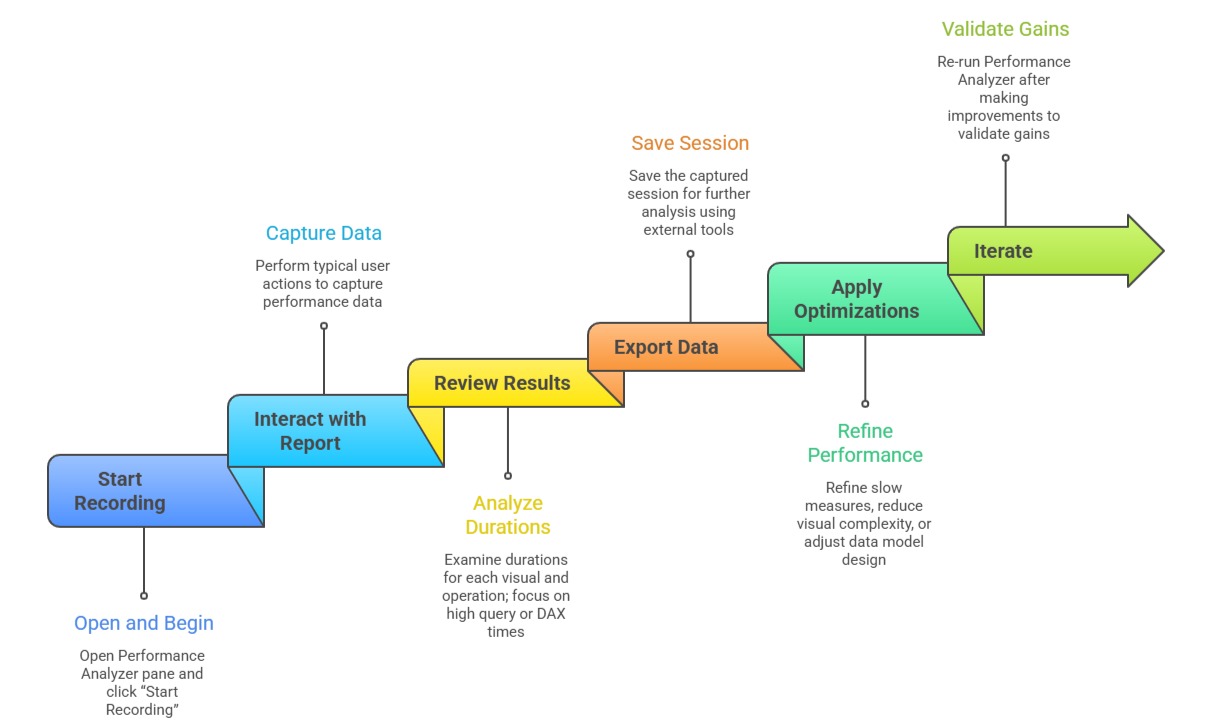

1. Start Recording: Open Performance Analyzer pane in Power BI Desktop and click “Start Recording.”

2. Interact with Report: Perform typical user actions such as selecting slicers, clicking visuals, or navigating pages to capture performance data.

3. Review Results: Examine durations for each visual and operation; focus on high query or DAX times.

4. Export Data: Save the captured session for further analysis using external tools like DAX Studio for query tuning.

5. Apply Optimizations: Refine slow measures, reduce visual complexity, or adjust data model design.

6. Iterate: Re-run Performance Analyzer after making improvements to validate gains.

Best Practices for Improved Performance

Improving performance requires thoughtful design across the entire Power BI solution. The key strategies below explain how to streamline data processing and visualization.


1. Prefer aggregated data sources and pre-aggregated tables.

2. Simplify complex DAX calculations and reuse variables.

3. Limit visuals per report page and avoid heavy custom visuals if possible.

4. Use query folding in Power Query to push transformations to the data source.

5. Optimize relationships and cardinality to reduce data scanning.

Ryan Cole

Ryan Cole

Product Designer
Profile

Class Sessions

1- Overview of Business Intelligence Concepts 2- Power BI Ecosystem and Components 3- Understanding Power BI Desktop, Service, and Mobile App 4- Data-Driven Decision Making Fundamentals 5- Connecting to Data Sources (SQL, Excel, Cloud, APIs) 6- Data Import vs Direct Query 7- Power Query Editor Basics and Advanced Transformations 8- Data Cleaning, Shaping, and Formatting 9- Creating Query Parameters and Templates 10- Principles of Data Modeling in Power BI 11- Star Schema and Snowflake Schema Concepts 12- Creating and Managing Relationships Between Tables 13- Calculated Columns vs Measures 14- Role of Lookup and Fact Tables in BI 15- DAX Fundamentals and Syntax 16- Calculated Columns and Measures in Depth 17- Aggregation and Filter Functions 18- Time Intelligence Calculations (YTD, MTD, QTD, etc.) 19- Context in DAX: Row Context and Filter Context 20- Using Variables and Advanced Calculation Techniques 21- Dynamic Calculations and What-If Analysis 22- Hierarchies and Drill-Down Techniques 23- Working with Parent-Child and Many-to-Many Relationships 24- Optimizing DAX for Performance 25- Principles of Effective Data Visualization 26- Creating Interactive Reports and Dashboards 27- Choosing the Right Visuals (Charts, KPIs, Maps, Tables) 28- Using Bookmarks, Tooltips, and Drillthroughs 29- Applying Conditional Formatting and Visual Level Filters 30- Publishing Reports to Power BI Service 31- Workspaces and Apps in Power BI 32- Sharing and Collaborating Securely with Row-Level Security (RLS) 33- Scheduled Refresh and Data Gateway Configuration 34- Usage Metrics and Report Usage Monitoring 35- Real-Time Data Streaming and Dashboards 36- Integration with Azure Synapse and Cognitive Services 37- AI Features in Power BI: Insights, Q&A, and Anomaly Detection 38- Using Power Automate with Power BI for Workflow Automation 39- Implementing Predictive Analytics and Forecasting 40- Best Practices for Data Model Optimization 41- Query Reduction and Load Optimization Techniques 42- Troubleshooting Common Power BI Issues 43- Monitoring Performance with Performance Analyzer 44- Governance and Compliance Considerations in Power BI