USD ($)
$
United States Dollar
Euro Member Countries
India Rupee

Real-Time Data Streaming and Dashboards

Lesson 35/44 | Study Time: 20 Min

Real-time data streaming and dashboards in Power BI enable organizations to monitor key metrics, events, and operations with minimal latency, providing up-to-date insights crucial for agile decision-making.

Unlike traditional static reports, real-time dashboards continuously refresh as new data arrives, allowing users to respond promptly to changing business conditions such as sales spikes, network status, or operational alerts.

Power BI accomplishes this through streaming datasets, push datasets, and integration with Azure services, offering flexible architectures for diverse real-time analytics use cases.

Integrating real-time data into dashboards involves connecting Power BI to streaming sources like IoT devices, sensors, application logs, or event hubs.

These data flows update dashboards automatically without requiring manual refresh or periodic polling. Users can leverage Power BI’s native streaming tiles, custom visuals, and alerts to visualize and take action on live data streams.

Designing efficient real-time dashboards requires balancing update frequency, data volume, and visualization complexity to maintain responsiveness and meaningfulness.

Real-Time Data Streaming in Power BI

Power BI supports real-time analytics through different data ingestion models. The main methods below describe how live data is streamed, stored, and combined for reporting.


1. Streaming Datasets:


Data is pushed into Power BI and visualized instantaneously.

Supports REST APIs, Azure Stream Analytics, or PubNub integrations.

Does not store historical data unless combined with a push dataset or dataflows.


2. Push Datasets:


Data pushed into Power BI and saved for historical analysis.

Enables combination of real-time and historical reporting.


3. Hybrid Datasets: Combine real-time data with scheduled refresh data in Power BI for comprehensive insights.

Building Real-Time Dashboards

Successful real-time dashboards balance speed, clarity, and security. The main steps below outline how to connect live data sources and design dashboards that update instantly.
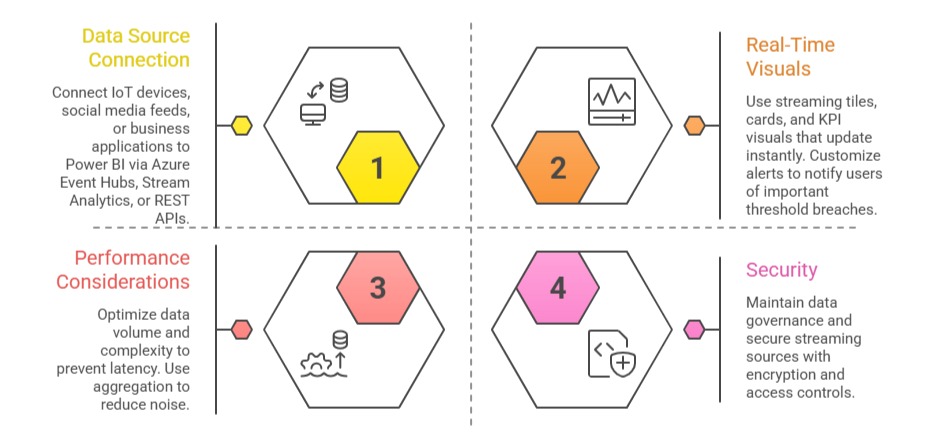

1. Data Source Connection: Connect IoT devices, social media feeds, or business applications to Power BI via Azure Event Hubs, Stream Analytics, or REST APIs.

2. Real-Time Visuals: Use streaming tiles, cards, and KPI visuals that update instantly. Customize alerts to notify users of important threshold breaches.

3. Performance Considerations: Optimize data volume and complexity to prevent latency. Use aggregation to reduce noise.

4. Security: Maintain data governance and secure streaming sources with encryption and access controls.

Use Cases of Real-Time Dashboards


1. Operations Monitoring: Track system performance, error rates, or supply chain logistics in real time.

2. Sales and Marketing: Monitor live campaign results, website traffic, and sales conversions instantly.

3. Customer Support: Visualize live call center statuses and ticket resolutions for service optimization.

4. IoT Analytics: Analyze sensor data streams to detect faults, anomalies, or predictive maintenance signals.

Ryan Cole

Ryan Cole

Product Designer
Profile

Class Sessions

1- Overview of Business Intelligence Concepts 2- Power BI Ecosystem and Components 3- Understanding Power BI Desktop, Service, and Mobile App 4- Data-Driven Decision Making Fundamentals 5- Connecting to Data Sources (SQL, Excel, Cloud, APIs) 6- Data Import vs Direct Query 7- Power Query Editor Basics and Advanced Transformations 8- Data Cleaning, Shaping, and Formatting 9- Creating Query Parameters and Templates 10- Principles of Data Modeling in Power BI 11- Star Schema and Snowflake Schema Concepts 12- Creating and Managing Relationships Between Tables 13- Calculated Columns vs Measures 14- Role of Lookup and Fact Tables in BI 15- DAX Fundamentals and Syntax 16- Calculated Columns and Measures in Depth 17- Aggregation and Filter Functions 18- Time Intelligence Calculations (YTD, MTD, QTD, etc.) 19- Context in DAX: Row Context and Filter Context 20- Using Variables and Advanced Calculation Techniques 21- Dynamic Calculations and What-If Analysis 22- Hierarchies and Drill-Down Techniques 23- Working with Parent-Child and Many-to-Many Relationships 24- Optimizing DAX for Performance 25- Principles of Effective Data Visualization 26- Creating Interactive Reports and Dashboards 27- Choosing the Right Visuals (Charts, KPIs, Maps, Tables) 28- Using Bookmarks, Tooltips, and Drillthroughs 29- Applying Conditional Formatting and Visual Level Filters 30- Publishing Reports to Power BI Service 31- Workspaces and Apps in Power BI 32- Sharing and Collaborating Securely with Row-Level Security (RLS) 33- Scheduled Refresh and Data Gateway Configuration 34- Usage Metrics and Report Usage Monitoring 35- Real-Time Data Streaming and Dashboards 36- Integration with Azure Synapse and Cognitive Services 37- AI Features in Power BI: Insights, Q&A, and Anomaly Detection 38- Using Power Automate with Power BI for Workflow Automation 39- Implementing Predictive Analytics and Forecasting 40- Best Practices for Data Model Optimization 41- Query Reduction and Load Optimization Techniques 42- Troubleshooting Common Power BI Issues 43- Monitoring Performance with Performance Analyzer 44- Governance and Compliance Considerations in Power BI

Sales Campaign

Sales Campaign

We have a sales campaign on our promoted courses and products. You can purchase 1 products at a discounted price up to 15% discount.