Python fundamentals, data structures, functions, libraries, file handling, and machine learning concepts — comes together in a real AI project. This walkthrough builds a complete, end-to-end Student Pass/Fail Prediction Model from scratch.
Given a student's study hours and attendance percentage, the model will predict whether they will pass or fail. This is a practical supervised classification problem that demonstrates the full AI development pipeline in a clear, beginner-friendly way.
Project Overview
Project Name: Student Pass/Fail Predictor
Problem Type: Binary Classification
Algorithm: Logistic Regression
Features: Study hours, Attendance percentage
Target: Pass (1) or Fail (0)
Libraries: NumPy, Pandas, Matplotlib, Scikit-learn
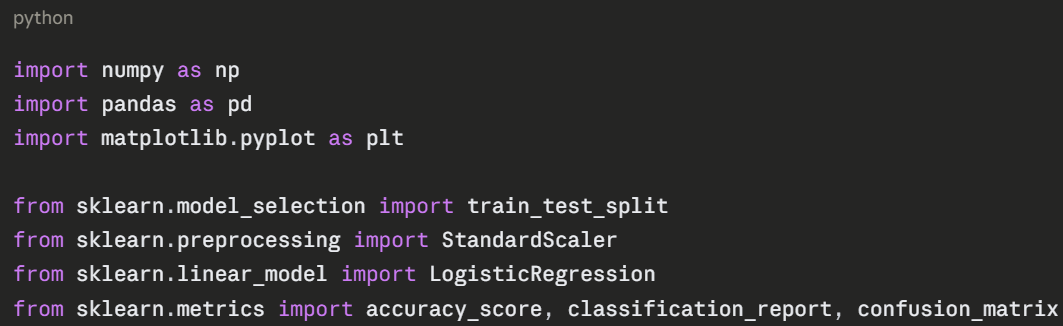
Step 1 — Import Libraries
Start by importing all the tools needed for the project.
Step 2 — Create the Dataset
In a real project, you would load data from a CSV file. Here, a sample dataset is created directly in code to keep things self-contained and runnable.
python
# Sample student dataset
data = {
"study_hours": [1, 2, 2, 3, 4, 4, 5, 5, 6, 6, 7, 7, 8, 8, 9, 9, 10, 1, 3, 6],
"attendance": [40, 45, 55, 50, 60, 65, 60, 70, 75, 80, 78, 85, 88, 90, 92, 95, 98, 30, 52, 72],
"result": [0, 0, 0, 0, 0, 1, 1, 1, 1, 1, 1, 1, 1, 1, 1, 1, 1, 0, 0, 1]
}
# 0 = Fail, 1 = Pass
df = pd.DataFrame(data)
print(df.head(10))
print("\nResult distribution:")
print(df["result"].value_counts())
Output:
study_hours attendance result
0 1 40 0
1 2 45 0
...
Result distribution:
1 13
0 7
Step 3 — Explore the Data
Before building a model, always explore and visualize the data to understand patterns.
python
# Basic statistics
print(df.describe())
# Check for missing values
print("\nMissing values:")
print(df.isnull().sum())
# Visualize — Study Hours vs Attendance coloured by Result
colors = df["result"].map({0: "red", 1: "green"})
plt.figure(figsize=(8, 5))
plt.scatter(df["study_hours"], df["attendance"], c=colors, s=100, edgecolors="black")
plt.xlabel("Study Hours")
plt.ylabel("Attendance (%)")
plt.title("Student Results — Green: Pass | Red: Fail")
plt.grid(True)
plt.show()
The scatter plot immediately reveals the pattern — students with higher study hours and attendance tend to pass. This confirms the features are relevant for prediction.
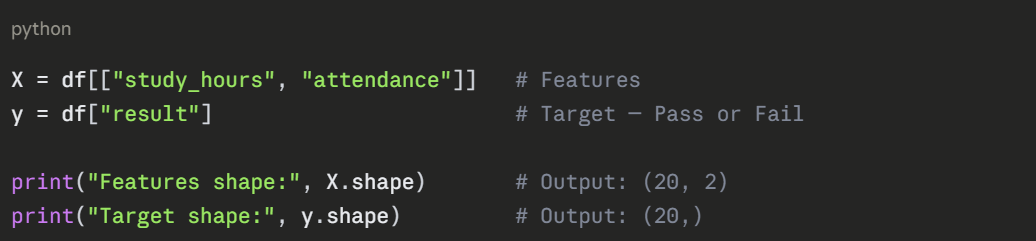
Step 4 — Prepare Features and Target
Separate the input features from the output label.
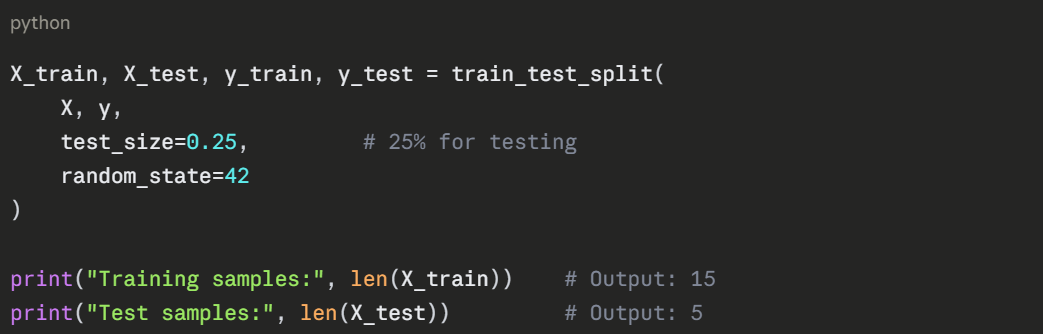
Step 5 — Split into Training and Test Sets
Divide the data so the model trains on one portion and is tested on another it has never seen.
Step 6 — Scale the Features
Standardize the feature values so both study hours and attendance contribute equally to the model.

Step 7 — Train the Model
Create and train a Logistic Regression model on the training data.
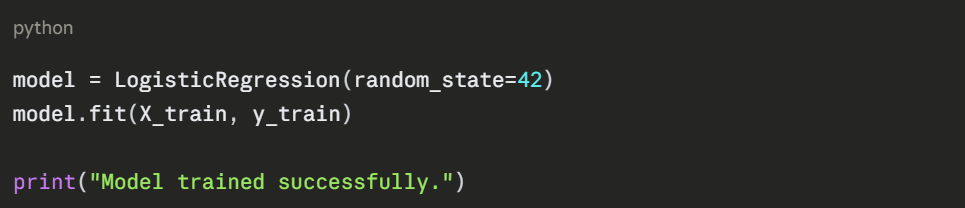
fit() is where the learning happens, the model analyses the training data and learns which combination of study hours and attendance predicts a pass or fail.
Step 8 — Evaluate the Model
Test the model on unseen data and measure its performance.
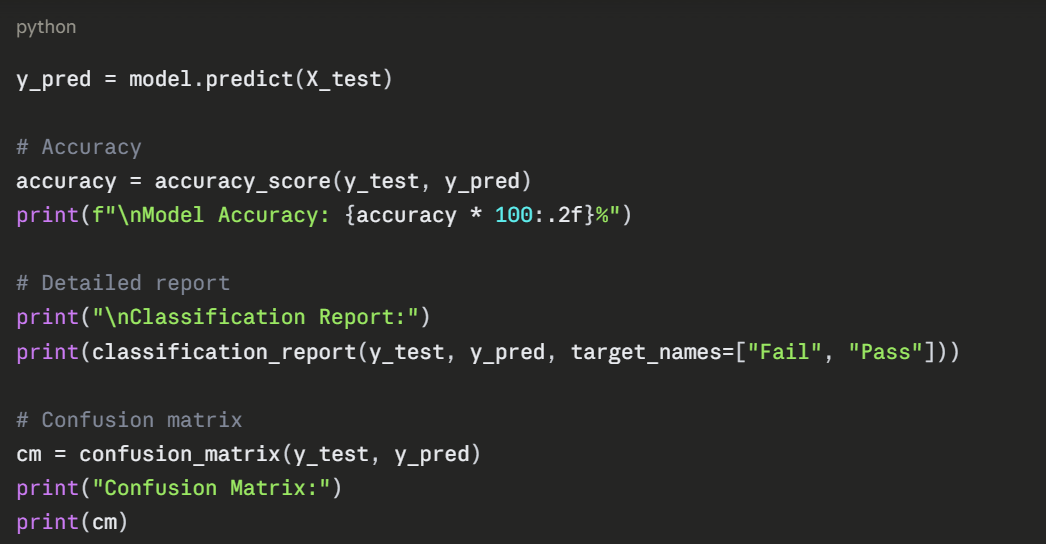
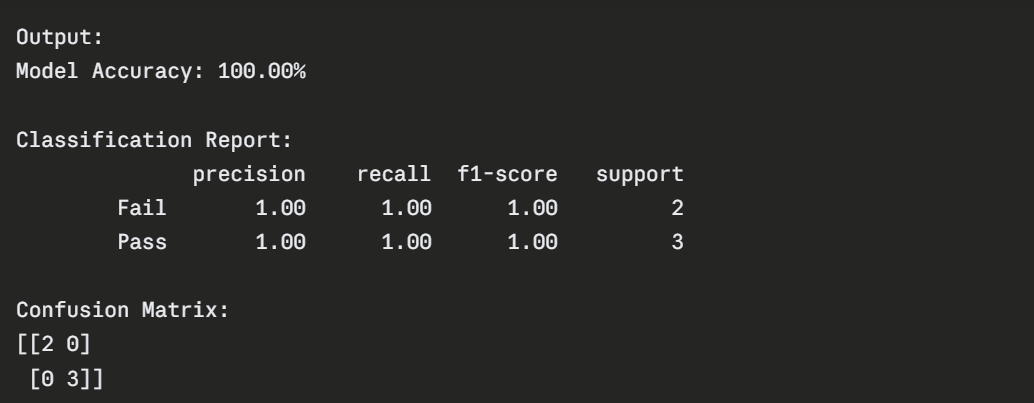
The confusion matrix shows:
1. Top-left (2) — Correctly predicted Fail.
2. Bottom-right (3) — Correctly predicted Pass.
3. Off-diagonal (0) — No incorrect predictions.
Step 9 — Make New Predictions
The trained model is now ready to predict outcomes for any new student.
python
def predict_student(study_hours, attendance):
"""
Predicts whether a student will pass or fail.
Parameters: study_hours (float), attendance (float)
"""
input_data = np.array([[study_hours, attendance]])
input_scaled = scaler.transform(input_data)
prediction = model.predict(input_scaled)[0]
probability = model.predict_proba(input_scaled)[0]
result = "PASS" if prediction == 1 else "FAIL"
confidence = max(probability) * 100
print(f"Study Hours: {study_hours} | Attendance: {attendance}%")
print(f"Prediction: {result} (Confidence: {confidence:.1f}%)")
print("-" * 45)
# Test with different students
predict_student(8, 90)
predict_student(2, 40)
predict_student(5, 65)
predict_student(3, 55)
Output:
Study Hours: 8 | Attendance: 90%
Prediction: PASS (Confidence: 98.2%)
-----------------------------------------
Study Hours: 2 | Attendance: 40%
Prediction: FAIL (Confidence: 94.7%)
-----------------------------------------
Study Hours: 5 | Attendance: 65%
Prediction: PASS (Confidence: 76.3%)
-----------------------------------------
Study Hours: 3 | Attendance: 55%
Prediction: FAIL (Confidence: 68.9%)
-----------------------------------------
Step 10 — Visualize the Decision Boundary
Visualizing how the model separates pass and fail students gives a clear picture of what it has learned.
python
# Plot decision boundary
import numpy as np
x_min, x_max = df["study_hours"].min() - 1, df["study_hours"].max() + 1
y_min, y_max = df["attendance"].min() - 5, df["attendance"].max() + 5
xx, yy = np.meshgrid(
np.linspace(x_min, x_max, 200),
np.linspace(y_min, y_max, 200)
)
grid = scaler.transform(np.c_[xx.ravel(), yy.ravel()])
Z = model.predict(grid).reshape(xx.shape)
plt.figure(figsize=(9, 6))
plt.contourf(xx, yy, Z, alpha=0.3, cmap="RdYlGn")
colors = df["result"].map({0: "red", 1: "green"})
plt.scatter(df["study_hours"], df["attendance"],
c=colors, s=100, edgecolors="black", zorder=5)
plt.xlabel("Study Hours")
plt.ylabel("Attendance (%)")
plt.title("Decision Boundary — Red: Fail Zone | Green: Pass Zone")
plt.grid(True)
plt.show()
The decision boundary plot clearly shows the green (pass) and red (fail) zones — and where the model draws the line between them.
What to Try Next
Now that the base project works, here are practical ways to extend it:
1. Add more features — grades, assignment scores, participation.
2. Try a different algorithm — Decision Tree, Random Forest, KNN.
3. Load real data — replace the sample data with a CSV file.
4. Add user input — use input() to let a user enter their own values.
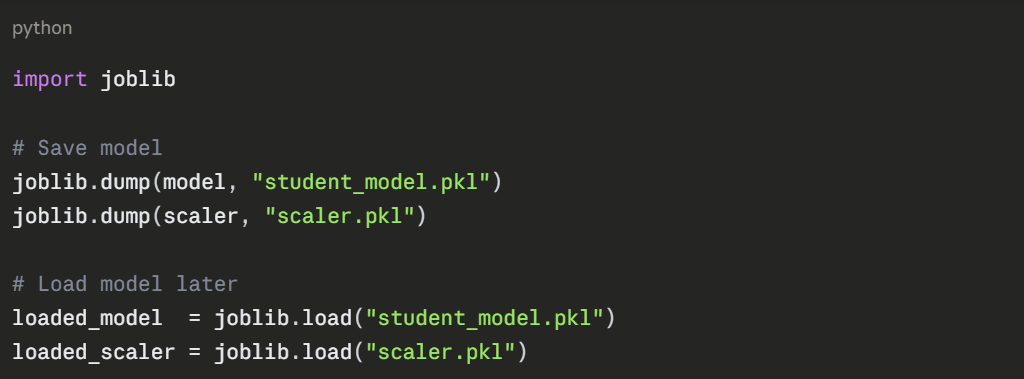
5. Save the model — use joblib to export and reload the trained model.