Font and visual configuration play a vital role in creating a comfortable, effective, and personalized working environment, especially for developers and system administrators who spend extensive hours interacting with terminals, code editors, and integrated development environments (IDEs).
Choosing the right fonts, color schemes, and visual layouts can reduce eye strain, improve code readability, and help maintain focus.
Importance of Font and Visual Configuration
High-quality fonts play a crucial role in improving the legibility of code and terminal output by minimizing ambiguity between similar characters, such as ‘0’ and ‘O’ or ‘1’ and ‘l’.
Consistent color schemes further enhance readability by helping developers quickly distinguish syntax elements, errors, warnings, and other important information.
Proper font size and spacing reduce eye strain during extended coding sessions, while visually appealing themes contribute to personal comfort and motivation, creating an environment that is both functional and enjoyable to work in.
Font Configuration
Font configuration allows developers to personalize their coding environment. The list below covers selecting coding-friendly fonts, enabling ligatures, and setting fallback options for symbols.
1. Choose monospaced fonts designed for coding, such as:
Fira Code (supports ligatures)
Source Code Pro
Consolas
JetBrains Mono
DejaVu Sans Mono
2. Consider fonts with ligature support that combine multiple characters into more readable symbols (e.g., !=, =>).
3. Adjust font size and line height for optimal readability.
4. Configure font fallback to support special characters or symbols appearing in logs and code.
Example: Setting font in VS Code settings (JSON):
"editor.fontFamily": "'Fira Code', Consolas, 'Courier New', monospace",

"editor.fontSize": 14,

"editor.fontLigatures": true
Color Schemes and Themes
Color schemes and themes help developers quickly distinguish code elements and spot errors. The main points below highlight popular themes, semantic coloration, and customization options.
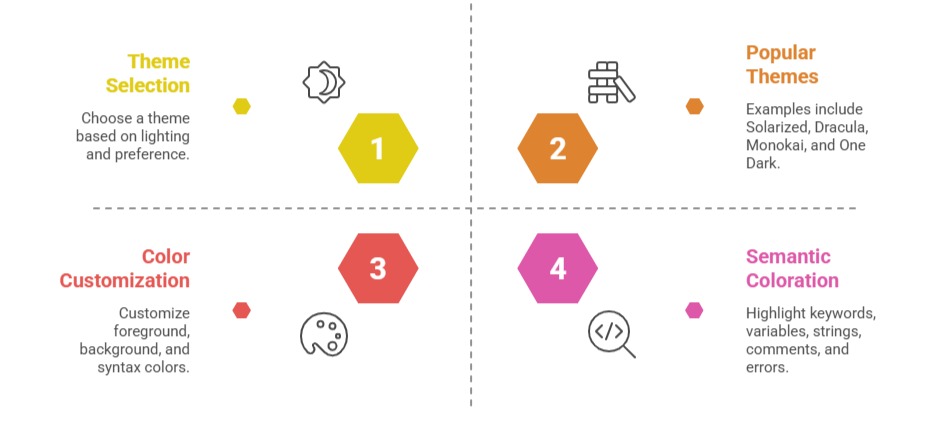
Example: Configuring terminal colors in .Xresources or terminal settings.
UI Layout and Visual Enhancements
Customizing line numbers, indent guides, and rulers can greatly improve the visibility of code structure, making it easier to read and understand.
Enabling features such as minimaps or code outline panels helps navigate large files efficiently, while adjusting cursor style and blink rate ensures comfortable tracking during editing.
Additionally, using padding and margins to separate text from window edges reduces visual clutter, creating a cleaner and more organized interface for coding.
Accessibility Considerations
Ensuring sufficient color contrast is essential for users with color vision deficiencies, allowing them to distinguish code elements and interface components effectively.
Selecting fonts and themes that provide readable sizes without compromising screen space enhances usability, while zoom-in/out features and screen readers offer additional support for users with visual impairments.
These practices help create an inclusive and accessible development environment for all users.
Cross-Platform Consistency
Maintaining a consistent visual experience across devices is crucial for productivity.
Synchronizing visual settings in editors and terminals using exportable configuration files or settings sync allows developers to retain familiar environments on multiple platforms.
Choosing platform-agnostic fonts and themes further ensures that code appearance and usability remain consistent, providing a seamless experience regardless of the device being used.