In the Linux operating system, navigating the file system efficiently using the command line is fundamental for developers and system administrators alike.
Mastery of core navigation commands enables users to move between directories, view directory contents, and understand their current location in the hierarchical Linux file structure.
These commands form the foundation for every task performed on Linux, from simple file handling to complex scripting and automation.
pwd (Print Working Directory)
The pwd command displays the absolute path of the current directory the user is in. Knowing your exact location within the file system hierarchy is vital for relative navigation and running scripts.
When a user opens a terminal, they start in their home directory (e.g., /home/username), but as they move through directories, pwd helps verify the current location.
Usage:
pwdOutput example:
/home/username/projectsThis output tells the user they are inside the 'projects' directory, which is within the 'username' home directory.
ls (List Directory Contents)
The ls command lists files and directories inside the current or specified directory, providing an overview of its contents. It is versatile, supporting many options to customize its output to show detailed information, hidden files, or sort based on different criteria.
Basic usage:
lsThis lists files and directories in the current directory.
Common useful options:
ls -l: Displays a detailed list including permissions, ownership, size, and modification date.
ls -a: Shows all files including hidden files (those starting with a dot).
ls -lh: Combines long format and human-readable file sizes.
ls -R: Recursively lists directories and their subcontents.
Example:
ls -lahThis command shows all files with detailed information including hidden files with human-readable sizes.
cd (Change Directory)
The cd command is used to move from one directory to another. Navigating efficiently between directories is essential for accessing files and running programs in different locations.
Basic usage:
cd <directory>This changes the current working directory to the specified directory.
Key points and shortcuts:
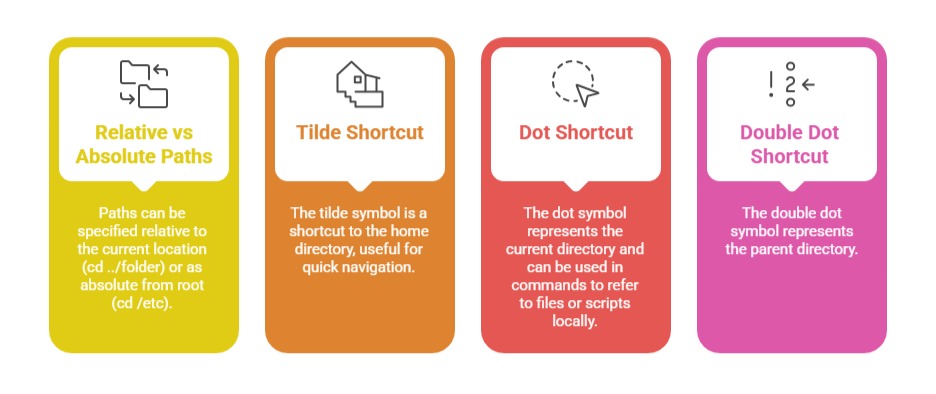
cd or cd ~: Moves to the user's home directory.
cd -: Switches back to the previous directory you were in.
cd ..: Moves one directory level up (to the parent directory).
cd ../..: Moves two levels up.
cd /path/to/directory: Moves directly to the absolute path specified.
Example:
cd /var/logMoves the user directly to the /var/log directory.