File and directory operations form an essential part of working with Linux systems, especially for developers. Mastering these operations enables users to create, organize, move, copy, and delete files and directories efficiently via the command line.
This fundamental knowledge improves workflow, supports automation scripts, and aids system management.
Creating Directories with mkdir
The mkdir command is used to create new directories. It can also create nested directories along a given path, ensuring parent directories are created as needed.
Usage
1. Basic syntax:
mkdir directory_name2. To create nested directories (parent and child), use the -p option:
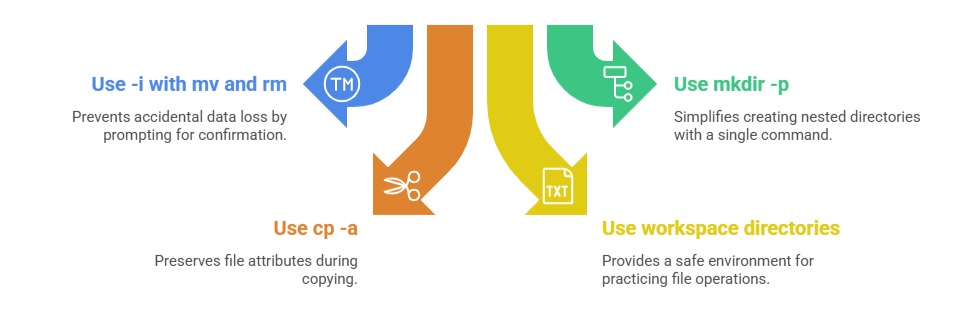
mkdir -p parent/child/grandchildThis creates the entire directory tree in one command.
3. The -v option provides verbose output to see the directories created step-by-step.
Example:
mkdir -p projects/2025/novemberThis command creates a nested directory structure suitable for organizing files by year and month.
Copying Files and Directories with cp
The cp command allows you to copy files or directories. By default, it copies files only; to copy directories recursively, use the -r or -R option.
Important options:
-r or -R: Recursively copy directories and their contents.
-i: Interactive mode prompts before overwriting existing files.
-u: Copy only when the source file is newer or the destination is missing.
-a: Archives files to preserve all attributes (permissions, timestamps).
Examples:
1. Copy a file:
cp file1.txt file2.txt2. Copy a directory recursively:
cp -r dir1/ dir2/This copies everything inside dir1 into dir2.
Moving and Renaming Files with mv
The mv command moves files or directories to a new location or renames them.
Key points:
Syntax:
mv [options] source destination1. Similar to cp, -i prompts before overwriting.
2. Moving directories recursively is implicit; no need for -r.
Examples:
1. Rename a file:
mv oldfile.txt newfile.txt2. Move a file to a different directory:
mv file.txt /path/to/destination/Removing Files and Directories with rm and rmdir
The rm command deletes files and directories. Caution is advised, especially with recursive deletion.
Important options:
1. Remove a file:
rm filename2. Remove a directory and its contents recursively:
rm -r directory_name3. Use -i for interactive prompt before deletion.
4. Use -f to force deletion without prompt (use carefully).
The rmdir command can remove empty directories only.
Example:
rm -r old_project/Deletes the directory and all files/folders within.
Symbolic Links with ln
Symbolic links (symlinks) are shortcuts pointing to files or directories.
1. Create a symbolic link with:
ln -s target link_name2. Useful for quick access or linking libraries in development.
Best Practices and Tips

Class Sessions
Sales Campaign

We have a sales campaign on our promoted courses and products. You can purchase 1 products at a discounted price up to 15% discount.