A terminal emulator is an application that provides a text-based interface to access the shell in Linux and Unix-like operating systems. It enables users to execute commands, run scripts, and manage processes efficiently in a command-line environment.
Selecting the right terminal emulator and configuring the shell environment optimally can significantly enhance productivity, usability, and comfort.
Environment setup includes customizing shell variables, prompt configurations, and workflows that directly impact developer efficiency.
Popular Terminal Emulators
Recent terminal emulators leverage GPU acceleration and modern frameworks for better performance. Some also integrate AI-powered features to enhance developer workflows. The popular terminal emulators in this category are outlined below.
1. Kitty: A GPU-accelerated, feature-rich terminal with ligature support, graphics rendering, and remote control capabilities. Kitty is praised for speed and modern UX.
2. Alacritty: A minimalist, fast terminal emulator leveraging GPU acceleration, focusing on simplicity and performance with extensive configurability via a YAML file.
3. Tilix: A tiling terminal emulator that supports session persistence, multiple terminal panes, and drag-and-drop support, ideal for multitasking workflows.
4. GNOME Terminal: The standard terminal for GNOME desktop environments, offering tabs, profiles, and wide compatibility.
5. Guake: A drop-down terminal inspired by games, accessible via a hotkey and highly customizable for quick access.
6. Warp: Modern Rust-based terminal in 2025, integrating AI features for autofill, command suggestions, and integrations to boost developer productivity.
7. Cool Retro Term: Terminal emulator with retro CRT aesthetics for nostalgic users seeking a unique visual.
Key Features to Consider
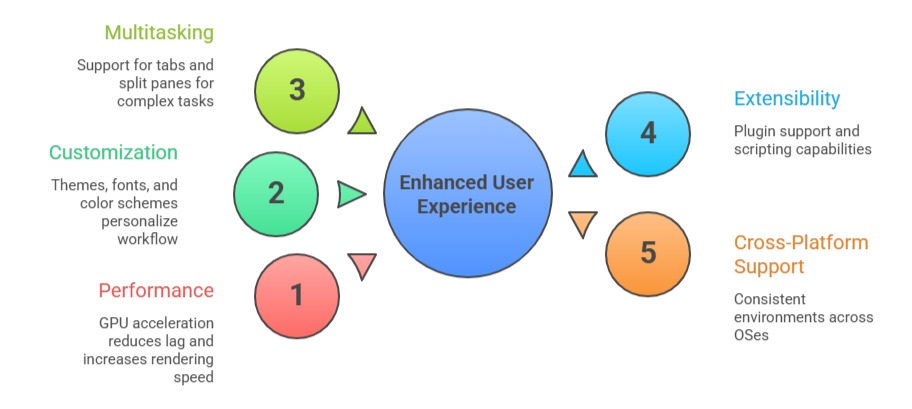
Choosing the right tool starts with understanding what features matter most. Some features improve speed, while others enhance flexibility and usability. The key features to consider are listed below.
Shell Environment Setup Essentials
Variables like PATH, EDITOR, and LANG configure how the shell and applications behave.
1. Setting variables persistently involves editing ~/.bashrc, ~/.zshrc, or system-wide profile files.
Example:
export PATH="$HOME/bin:$PATH"

export EDITOR="vim"
2. Shell Configuration Files: Customize startup behavior using .bashrc, .bash_profile, .zshrc, or .profile.
3. Aliases and Functions: Create shortcuts and reusable commands for frequent operations.
4. Shell Prompt Customization: Using PS1 in Bash or PROMPT in Zsh to display useful information (e.g., current directory, git branch) and improve command-line context.
5. History and Completion Settings: Enable extended command history and autocompletion features to speed up command entry.
Best Practices for Optimal Setup
1. Use a terminal emulator that balances performance and usability based on workload.
2. Centralize environment variables and aliases in initialization scripts for consistency.
3. Customize prompts to show relevant status (e.g., git branch, error codes).
4. Use shell completion frameworks and plugins to minimize typing.
5. Regularly backup configuration files.
6. Leverage terminal multiplexer tools (e.g., tmux) within terminal emulators for session management.

Class Sessions
Sales Campaign

We have a sales campaign on our promoted courses and products. You can purchase 1 products at a discounted price up to 15% discount.