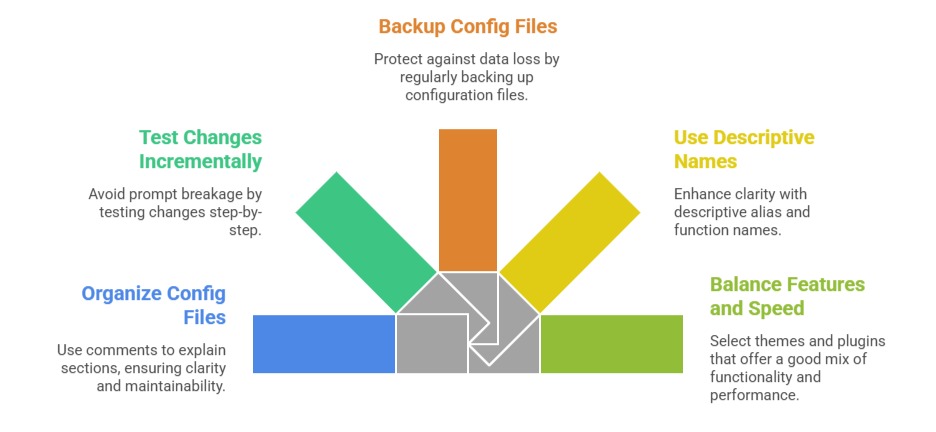
Customizing the shell environment is a powerful way to enhance productivity, improve visual clarity, and tailor the command line interface to suit individual workflows.
Both Bash and Zsh shells provide extensive customization options, allowing users to modify prompts, create aliases, define functions, and adopt themes and plugins for a personalized experience.
Effective shell customization reduces repetitive typing, provides contextual information at a glance, and can even automate common tasks, making everyday interactions with the terminal more efficient and enjoyable.
Customizing the Shell Prompt (PS1 and PROMPT)
The shell prompt is the text displayed to indicate readiness for user input. By customizing it, users can include valuable information such as current directory, username, host details, git branch, time, and command status.
1. Bash uses PS1 for the primary prompt; Zsh uses PROMPT.
2. Prompt strings support escape sequences for dynamic content; for example:
\u – username
\h – hostname
\w – current working directory
\t – current time
\! – command number
3. Colors and styles can be added using ANSI escape codes for better readability.
Example Bash prompt:
PS1='\[\e[32m\]\u@\h \w \$\[\e[m\] 'This shows the username, hostname, working directory in green, followed by the prompt symbol.
Aliases: Shortcut Commands
Aliases map frequently used or complex commands to shorter names, speeding up command entry and reducing errors.
1. Defined in shell config files (~/.bashrc, ~/.zshrc):
alias ll='ls -alF'

alias gs='git status'
2. Aliases enhance consistency and efficiency in the terminal.
Functions: Custom Command Sequences
Functions extend aliases by allowing users to define reusable blocks of code that can accept arguments and include complex logic.
Example function to create and enter a directory:
function mkcd() {

  mkdir -p "$1" && cd "$1"

}
Use mkcd new_folder to create and switch into the folder in one command.
Environment Variables
Environment variables control the behavior of the shell and other applications.
Common variables include:
PATH: directories searched for executables.
EDITOR: default text editor.
Users can modify or extend variables within configuration files:
export PATH="$HOME/bin:$PATH"

export EDITOR="vim"
Using Themes and Plugins
Modern shells, especially Zsh with frameworks like Oh My Zsh, support themes and plugins to drastically improve visuals and functionality.
1. Themes style the prompt with icons, fonts, and colors.
2. Plugins add features like syntax highlighting, autosuggestions, git integration.
3. Example popular plugins: git, zsh-autosuggestions, zsh-syntax-highlighting.
4. Enabling these involves editing config files and sourcing changes:
plugins=(git zsh-autosuggestions)

source $ZSH/oh-my-zsh.sh
Dynamic Titles and Status Indicators
Shells can update terminal window titles dynamically or show command execution status in the prompt, providing real-time feedback.
1. This helps when working with multiple terminal windows or monitoring long-running tasks.
2. Can be scripted into prompts or triggered via shell hooks.