In fast-paced development and sysadmin environments, maximizing productivity often involves minimizing reliance on mouse interactions and leveraging keyboard-driven workflows.
Using keyboard shortcuts, command-line tools, and text editors’ features allows users to execute complex tasks swiftly without breaking focus.
Efficiency hacks tailored to keyboard use can drastically reduce the time spent on repetitive actions, improve accuracy, and maintain flow during development or system management.
Fundamentals of Keyboard-Driven Workflows
Keyboard-driven workflows enhance efficiency by allowing developers to navigate interfaces, write code, and execute commands without relying on a mouse.
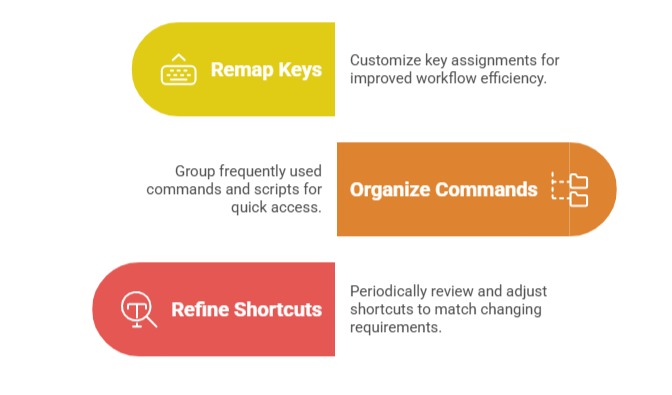
Learning and customizing keyboard shortcuts strengthens muscle memory, enabling smoother and faster transitions between tasks.
Tools such as Vim, tmux, and command-line shells offer extensive customization options, allowing users to create personalized workflows tailored to their development needs.
Essential Keyboard Shortcuts for Efficiency
Using keyboard shortcuts reduces reliance on the mouse and speeds up common tasks. The list below introduces essential commands for shells, editors like Vim, and terminal multiplexers.
1. Shell and Terminal Navigation
Ctrl + A: Move cursor to beginning of line.
Ctrl + E: Move cursor to end of line.
Ctrl + U: Cut text before cursor.
Ctrl + K: Cut text after cursor.
Ctrl + W: Delete previous word.
Ctrl + R: Reverse search command history.
Alt + F/B: Move cursor forward/backward by word.
2. Text Editor Shortcuts (Vim example)
i: Enter insert mode for editing.
Esc: Return to normal mode.
:w: Save file.
:q: Quit editor.
dd: Delete line.
yy: Copy line.
p: Paste below.
/: Search in file.
3. Tmux (Terminal Multiplexer) Shortcuts
Ctrl + B then %: Split window vertically.
Ctrl + B then ": Split window horizontally.
Ctrl + B then Arrow keys: Navigate panes.
Ctrl + B then c: Create new window.
Efficiency Hacks and Techniques
Optimizing productivity often relies on clever shortcuts and automation tools. The main techniques below highlight ways to speed up shell commands, coding, and navigation tasks.
1. Aliases and Functions: Define short commands for frequent operations to save keystrokes.
Example:
alias gs='git status'

function mkcd() { mkdir -p "$1"; cd "$1"; }
2. Command History and Completion: Use reverse search and tab completion in shells to quickly recall and complete commands.
3. Macros and Snippets: Automate repetitive text or code patterns using editor or IDE snippet managers.
4. Context Switching Minimization: Use terminal multiplexers and integrated terminals within IDEs to work without switching windows.
5. Keyboard-Only Web Browsing: Tools like w3m or browser extensions like Vimium enable navigation without a mouse.
Customizing for Personal Productivity