Automating shell scripts is essential for efficient system administration and task management in Linux environments. Integrating scripts with scheduling tools such as cron jobs and systemd timers enables timed, repeated, or event-driven execution without manual intervention. This helps maintain consistent system states, perform routine audits, backups, and custom workflows reliably.
Cron Jobs: Classic Scheduling Tool
Cron is a daemon that executes scheduled commands or scripts at specified times or intervals. Uses a crontab file (crontab -e) where users define commands with time-based schedules.
Cron Syntax
A cron job entry follows this format:
* * * * * /path/to/script.sh

- - - - -

| | | | |

| | | | └─ Day of the week (0-7, Sunday=0 or 7)

| | | └── Month (1-12)

| | └─── Day of the month (1-31)

| └──── Hour (0-23)

└───── Minute (0-59)
Example: Run script daily at 2 AM
0 2 * * * /usr/local/bin/backup.shCron Tips
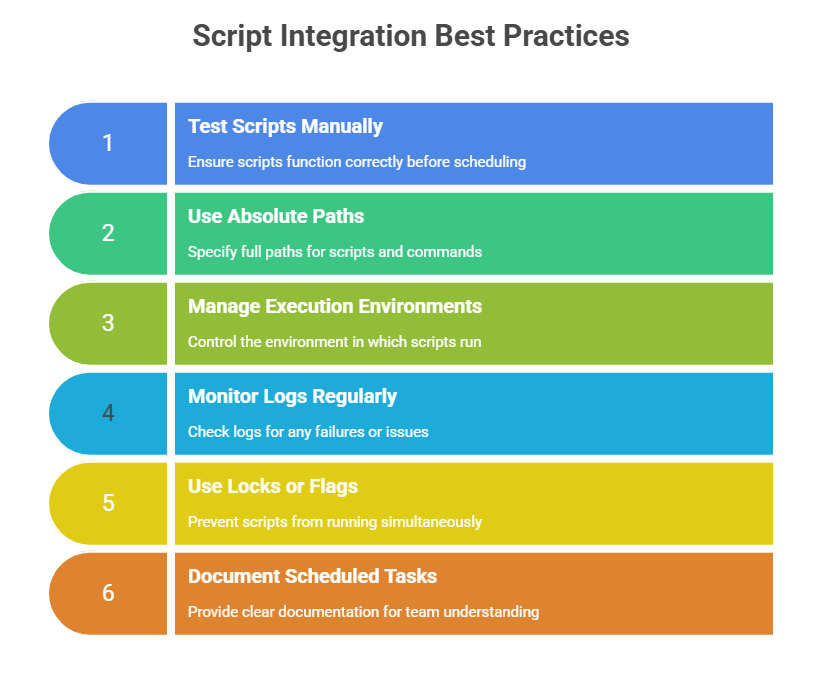
1. Ensure scripts have executable permissions and absolute paths.
2. Redirect standard output and error to log files for monitoring:
0 2 * * * /usr/local/bin/backup.sh >> /var/log/backup.log 2>&13. Use environment variables cautiously; cron runs with a minimal environment.
Systemd Timers: Modern Scheduling Solution
A systemd timer is a scheduling mechanism integrated into systemd-based Linux distributions, providing advanced control over task execution.
It supports both calendar timers, which function similarly to cron jobs, and monotonic timers, which run tasks at intervals relative to system boot or the previous execution.
Compared to traditional scheduling tools, systemd timers offer more powerful features and tighter integration with the systemd ecosystem.
Basic Components
1. Service Unit (.service): Defines the task to run (script/command).
2. Timer Unit (.timer): Defines when to trigger the service.
Example: Creating a Timer for a Shell Script
Create service file /etc/systemd/system/myscript.service
[Unit]

Description=Run My Backup Script


[Service]

Type=oneshot

ExecStart=/usr/local/bin/backup.sh
Create timer file /etc/systemd/system/myscript.timer
[Unit]

Description=Run backup daily at 2 AM


[Timer]

OnCalendar=*-*-* 02:00:00

Persistent=true


[Install]

WantedBy=timers.target
Enable and start the timer
systemctl enable myscript.timer

systemctl start myscript.timer
Advantages of systemd Timers
Systemd timers provide precise control over task execution using calendar events and time intervals. Their logs are fully integrated with journalctl, making monitoring and troubleshooting easier.
Timers can trigger services based on system events, boot times, or even random delays, and they offer improved dependency handling and failure management compared to traditional scheduling tools.

Class Sessions
Sales Campaign

We have a sales campaign on our promoted courses and products. You can purchase 1 products at a discounted price up to 15% discount.