You now know how to work with Git locally and how teams collaborate through branching and pull requests.
The next step is connecting that local Git workflow to a remote repository, a central place where your team's code lives, where CI/CD pipelines trigger, and where everything comes together.
Why Remote Repositories Matter
A remote repository is not just a backup of your local code. It is the central source of truth for your entire team and your entire delivery pipeline.
Everything that happens in DevOps — automated builds, tests, deployments, security scans — is triggered by activity in the remote repository.
When a developer pushes code to a remote branch, that push can automatically:
1. Trigger a CI pipeline to build and test the code.
2. Notify teammates that a pull request needs review.
3. Deploy the change to a staging environment.
4. Run a security scan on the new code.
Without a remote repository, none of this automation is possible. The remote repository is the engine that drives the entire DevOps lifecycle.
GitHub
The world's most widely used platform for hosting Git repositories, collaborating on code, and running automated workflows.
GitHub is a cloud-based platform built on top of Git. It provides remote repository hosting plus a rich set of collaboration and automation features — pull requests, code reviews, project boards, wikis, and most importantly for DevOps, GitHub Actions — a built-in CI/CD platform.
GitHub is owned by Microsoft and hosts over 100 million developers and billions of repositories.
Setting Up a GitHub Repository
Step 1 — Create a GitHub account
Go to github.com and sign up. Choose a username that is professional — you will share this with employers and collaborators.
Step 2 — Create a new repository
Once logged in:
1. Click the + icon in the top right → New repository.
2. Give it a name — for example, devops-aws-project.
3. Choose Private for work projects, Public for open-source.
4. Optionally add a README, .gitignore, and licence.
5. Click Create repository.
Step 3 — Connect your local project to GitHub
If you already have a local Git repository:
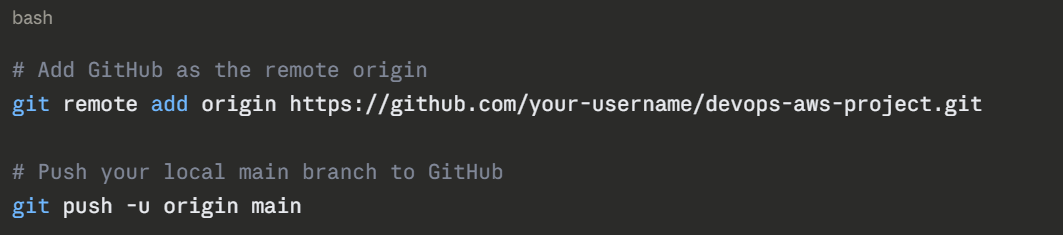
If you are starting fresh by cloning from GitHub:
bash
git clone https://github.com/your-username/devops-aws-project.git
cd devops-aws-project
```
### Authentication with GitHub
GitHub no longer accepts plain username and password for Git operations over HTTPS. You have two secure options:
**Option A — Personal Access Token (PAT)**
A PAT is a token you generate from your GitHub account settings and use in place of a password.
```
GitHub → Settings → Developer Settings → Personal Access Tokens → Generate new token
When Git prompts for a password, enter the token instead:

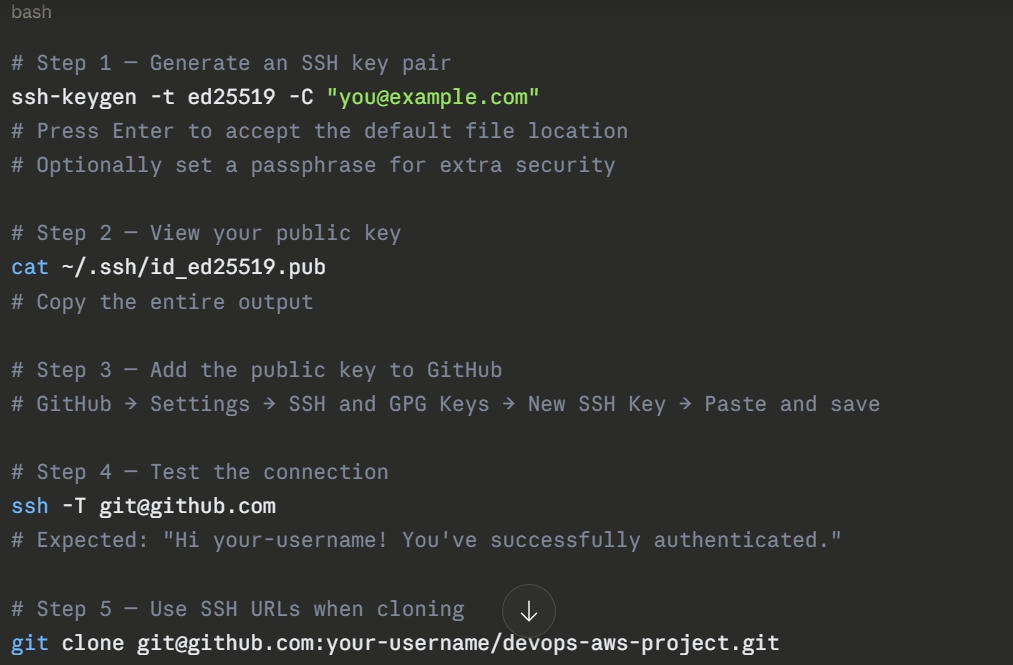
Option B — SSH Key (Recommended)
SSH keys are more secure and more convenient — once set up, you never need to enter credentials again.
Key GitHub Features for DevOps
1. GitHub Actions: GitHub's built-in CI/CD platform. You define workflows in YAML files stored in your repository under .github/workflows/. These workflows trigger automatically on events like push, pull request, or on a schedule.
A simple example — run tests on every push:
yaml
# .github/workflows/test.yml
name: Run Tests
on: [push, pull_request]
jobs:
test:
runs-on: ubuntu-latest
steps:
- uses: actions/checkout@v3
- name: Set up Python
uses: actions/setup-python@v4
with:
python-version: '3.11'
- name: Install dependencies
run: pip install -r requirements.txt
- name: Run tests
run: pytest
```
**Branch Protection Rules**
You can configure rules on branches like main to prevent direct pushes, require pull request approvals, require passing CI checks before merging, and enforce signed commits.
```
GitHub → Repository → Settings → Branches → Add branch protection rule
2. GitHub Secrets: Sensitive values — AWS credentials, API keys, deployment tokens — should never be stored in code. GitHub Secrets lets you store them securely and reference them in your Actions workflows:
yaml
- name: Configure AWS credentials
uses: aws-actions/configure-aws-credentials@v2
with:
aws-access-key-id: ${{ secrets.AWS_ACCESS_KEY_ID }}
aws-secret-access-key: ${{ secrets.AWS_SECRET_ACCESS_KEY }}
aws-region: ap-south-1
```
---
## 3. AWS CodeCommit
*Amazon's fully managed, private Git repository service — built into the AWS ecosystem.*
### What is AWS CodeCommit?
AWS CodeCommit is a managed source control service provided by AWS. It hosts private Git repositories and integrates natively with other AWS services — CodeBuild, CodePipeline, CodeDeploy, IAM, CloudWatch, and more.
If your entire DevOps workflow lives inside AWS — and for many enterprise teams it does — CodeCommit keeps everything under one roof, secured through IAM, and without needing to manage a third-party platform.
### How CodeCommit Differs from GitHub
| | GitHub | AWS CodeCommit |
|---|---|---|
| **Hosted by** | GitHub (Microsoft) | Amazon Web Services |
| **Access control** | GitHub accounts and teams | AWS IAM users, roles, and policies |
| **Integration** | Broad ecosystem, third-party tools | Deep native AWS integration |
| **CI/CD** | GitHub Actions | AWS CodePipeline and CodeBuild |
| **Pricing** | Free tier + paid plans | Free up to 5 users, then pay per use |
| **Best for** | Open source, cross-platform teams | AWS-native enterprise workflows |
| **Pull requests** | Full-featured | Available but more basic |
### Setting Up AWS CodeCommit
**Step 1 — Enable CodeCommit in your AWS account**
CodeCommit is available in most AWS Regions. No installation required — it is a managed service you access through the AWS Console, CLI, or API.
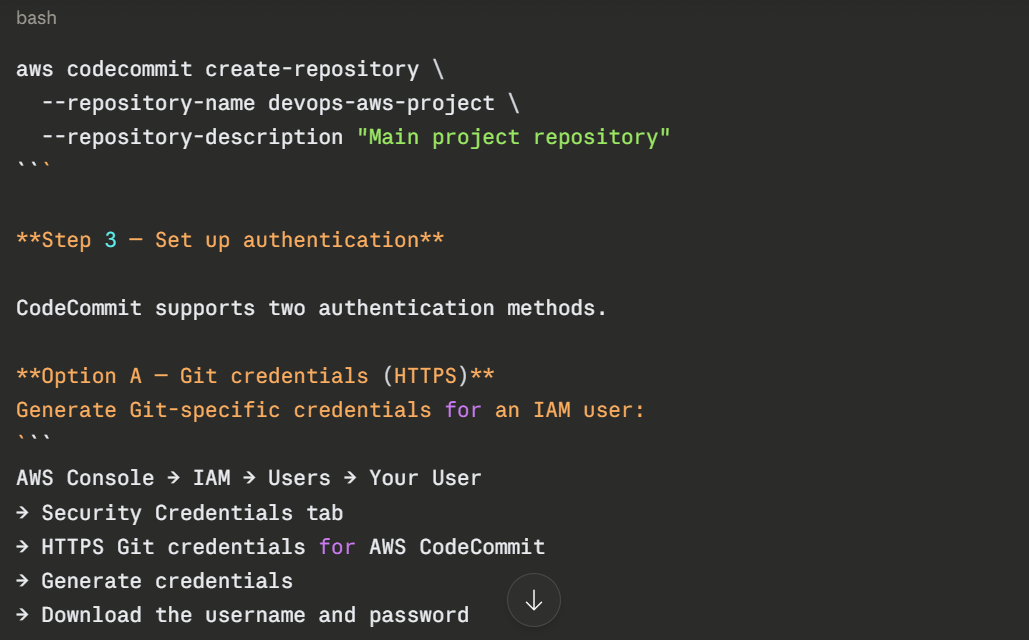
**Step 2 — Create a repository**
Via the AWS Console:
```
AWS Console → CodeCommit → Repositories → Create repository
→ Name: devops-aws-project
→ Description: (optional)
→ Create
Via the AWS CLI:
Then use these credentials when cloning over HTTPS:
bash
git clone https://git-codecommit.ap-south-1.amazonaws.com/v1/repos/devops-aws-project
# Username: your-iam-git-username
# Password: your-iam-git-password
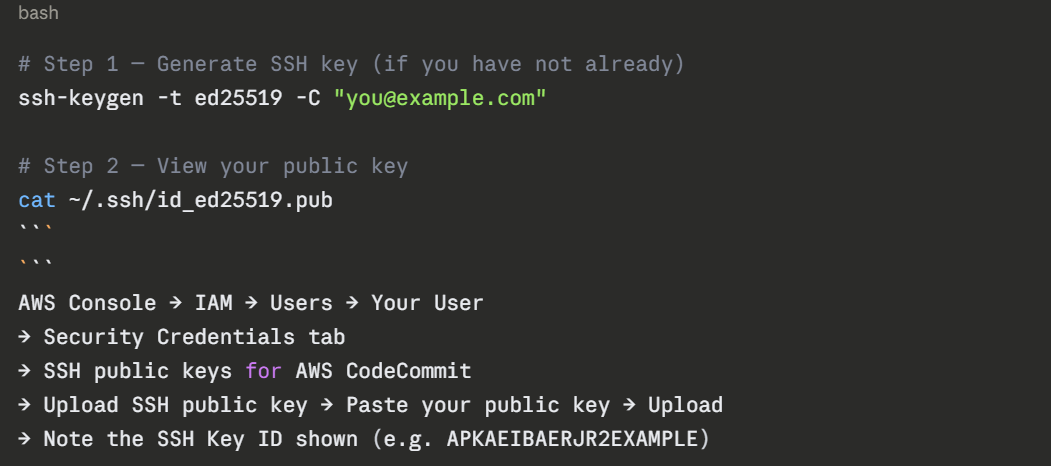
Option B — SSH Key (Recommended)
Upload your public SSH key to your IAM user:
.png)
.png)
Option C — AWS CLI Credential Helper (Recommended for IAM Roles)
If you are running on an EC2 instance or using IAM roles — which is the best practice for automation — use the AWS CLI credential helper. It uses the IAM role attached to your instance automatically, with no keys stored anywhere.
bash
# Configure Git to use the AWS credential helper
git config --global credential.helper '!aws codecommit credential-helper $@'
git config --global credential.UseHttpPath true
# Now clone using HTTPS — credentials handled automatically by IAM role
git clone https://git-codecommit.ap-south-1.amazonaws.com/v1/repos/devops-aws-project
This is the most secure approach for CI/CD pipelines and EC2-hosted build agents.
Working with CodeCommit — Daily Commands
Once connected, CodeCommit works exactly like any other Git remote. All standard Git commands work unchanged:
bash
# Check your remote
git remote -v
# Pull latest changes
git pull origin main
# Push your changes
git push origin main
# Create and push a new branch
git checkout -b feature/add-lambda-trigger
git push -u origin feature/add-lambda-trigger
```
### CodeCommit Notifications and Triggers
One powerful feature of CodeCommit is its native integration with AWS events. You can configure:
**Notifications** — Send alerts to an SNS topic or AWS Chatbot when events happen — a pull request is created, a comment is added, or a branch is updated.
```
CodeCommit → Repository → Settings → Notifications → Create notification rule
Triggers — Automatically invoke a Lambda function or send a message to SNS when code is pushed to a specific branch. This is how you kick off a build pipeline without using CodePipeline.
bash
# Create a trigger via CLI
aws codecommit put-repository-triggers \
--repository-name devops-aws-project \
--triggers '[{
"name": "TriggerBuildOnMain",
"destinationArn": "arn:aws:lambda:ap-south-1:123456789:function:StartBuild",
"branches": ["main"],
"events": ["push"]
}]'
```
---
## 4. Using Both GitHub and CodeCommit Together
In real-world environments, you will sometimes find teams that use GitHub as their primary code hosting platform but also need to integrate with AWS services. There are two common patterns for this.
### Pattern A — GitHub as Source, AWS CodePipeline as Delivery
Your code lives in GitHub. AWS CodePipeline watches your GitHub repository for changes and triggers the build and deployment pipeline inside AWS.
```
Developer pushes to GitHub
│
▼
AWS CodePipeline detects the push (via GitHub webhook)
│
▼
AWS CodeBuild runs the build and tests
│
▼
AWS CodeDeploy deploys to EC2, ECS, or Lambda
This is one of the most common patterns for teams that prefer GitHub for collaboration but want to use AWS-native services for deployment.
Pattern B — Mirror Repository
Some teams maintain their primary repository on GitHub but mirror it to CodeCommit automatically. This gives them CodeCommit's deep IAM integration and AWS event triggers while keeping GitHub as the developer-facing interface.
bash
# Add CodeCommit as a second remote alongside GitHub
git remote add codecommit https://git-codecommit.ap-south-1.amazonaws.com/v1/repos/devops-aws-project
# Push to both remotes
git push origin main # → GitHub
git push codecommit main # → CodeCommit
You can automate this mirroring through a GitHub Action that pushes to CodeCommit on every push to main.
IAM Permissions for CodeCommit
Because CodeCommit is an AWS service, access is controlled entirely through IAM. This is fundamentally different from GitHub, where access is managed through GitHub accounts and teams.
Minimum permissions for a developer
json
{
"Version": "2012-10-17",
"Statement": [
{
"Effect": "Allow",
"Action": [
"codecommit:GitPull",
"codecommit:GitPush",
"codecommit:CreateBranch",
"codecommit:ListBranches",
"codecommit:GetRepository",
"codecommit:CreatePullRequest",
"codecommit:GetPullRequest",
"codecommit:PostCommentForPullRequest"
],
"Resource": "arn:aws:codecommit:ap-south-1:123456789:devops-aws-project"
}
]
}
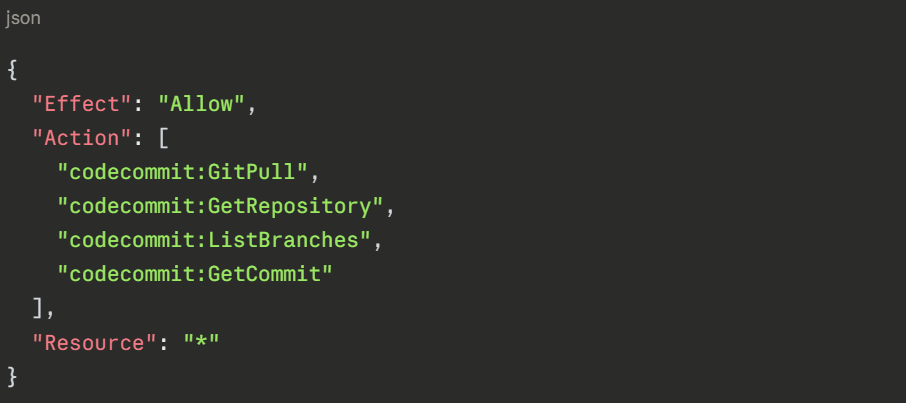
Read-only access for auditors
AWS managed policies for CodeCommit
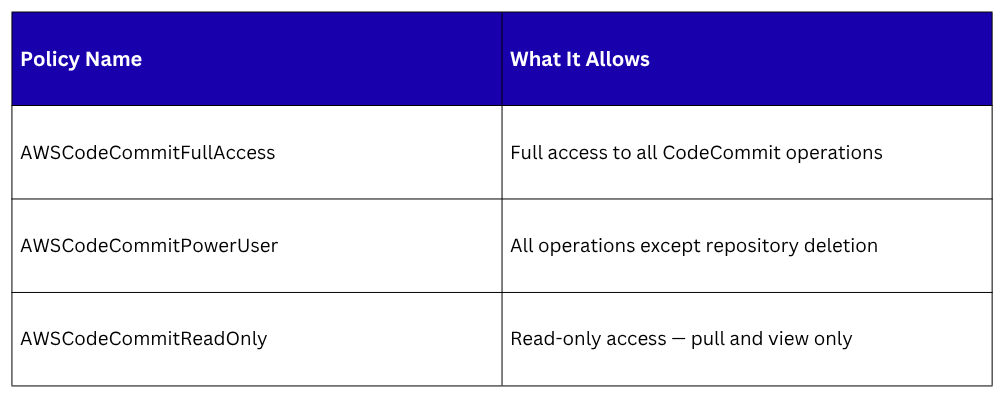
AWS provides pre-built IAM policies you can attach directly to users or groups:
For most developers, AWSCodeCommitPowerUser is the right choice. Reserve FullAccess for administrators only.
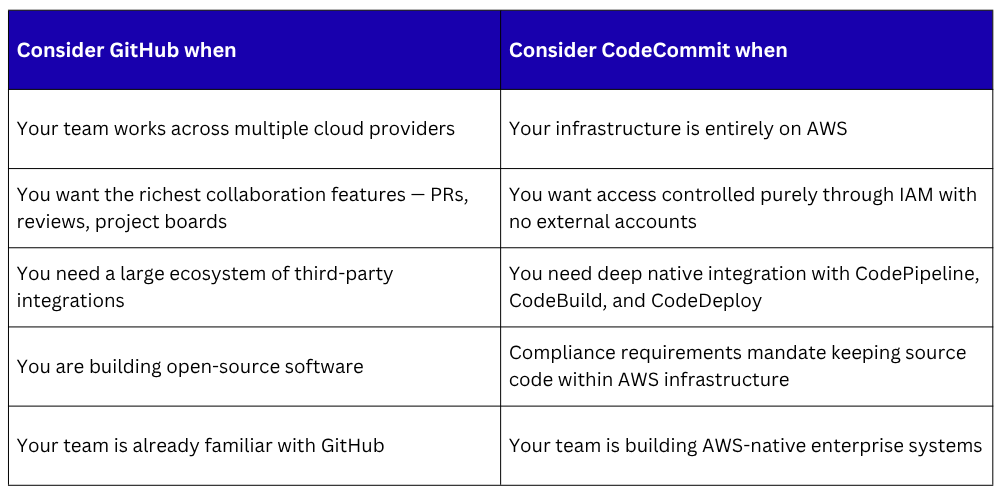
Choosing Between GitHub and CodeCommit
In practice, many teams use GitHub for development collaboration and AWS CodePipeline with CodeBuild for the delivery pipeline — getting the best of both worlds.